WordPress plugin
A lightweight WordPress gallery for images already on your CDN
Use images from Bunny CDN, Cloudflare R2, S3 or any direct image URL. No importing into the WordPress Media Library. Add your images, captions and alt text, then publish.
Direct CDN image URLs
Use images from any CDN or direct image URL without importing them into WordPress.
Responsive gallery layout
A wide lead image with a clean responsive grid for desktop, tablet and mobile.
Built-in lightbox
Open images full-screen with captions, previous/next controls and keyboard navigation.
Gutenberg and Elementor
Add galleries directly from the WordPress editor or Elementor widget.
From CDN to gallery in three steps

Add the gallery
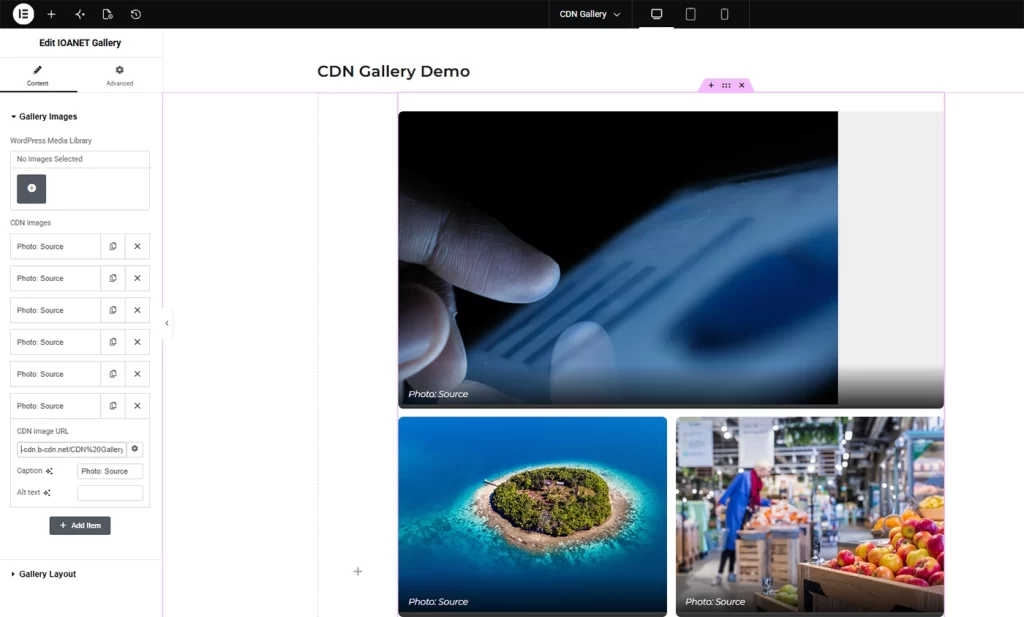
Insert the IOANET CDN Gallery block or Elementor widget.

Add your images
Select WordPress Media Library images or paste direct CDN image URLs.

Publish
Your responsive gallery is ready with captions and full-screen lightbox viewing.
Lifetime licence
-
Plugin download
-
Lifetime use
-
Future updates
-
CDN and Media Library images
-
Gutenberg and Elementor support
-
Responsive gallery and lightbox
Can I use images from any CDN?
Do I need to import images into WordPress?
Can I also use WordPress Media Library images?
Does the gallery work on mobile?
Is this a subscription?
How to use IOANET CDN Gallery guide
Step one
Add the gallery
- In the WordPress block editor, click + and search for IOANET CDN Gallery.
- In Elementor, search for IOANET CDN Gallery in the widget panel, then drag it onto the page.
- Add the gallery anywhere you want it to appear in the post or page.
Step two
Add your images
- Show the gallery block with Media Library and CDN URL options
- Caption: “Choose WordPress images or paste direct image URLs from your CDN.”
Step three
Adjust the layout
- Show columns, featured first image, captions, heights, etc.
- Caption: “Choose the layout and display settings you want.”
Step four
Publish
- Show the finished front-end gallery/lightbox
- Caption: “Publish your page. The gallery is responsive and includes full-screen viewing.”